Users#
Chat extension#
The jupyterlab-chat extension adds chats to jupyterlab.
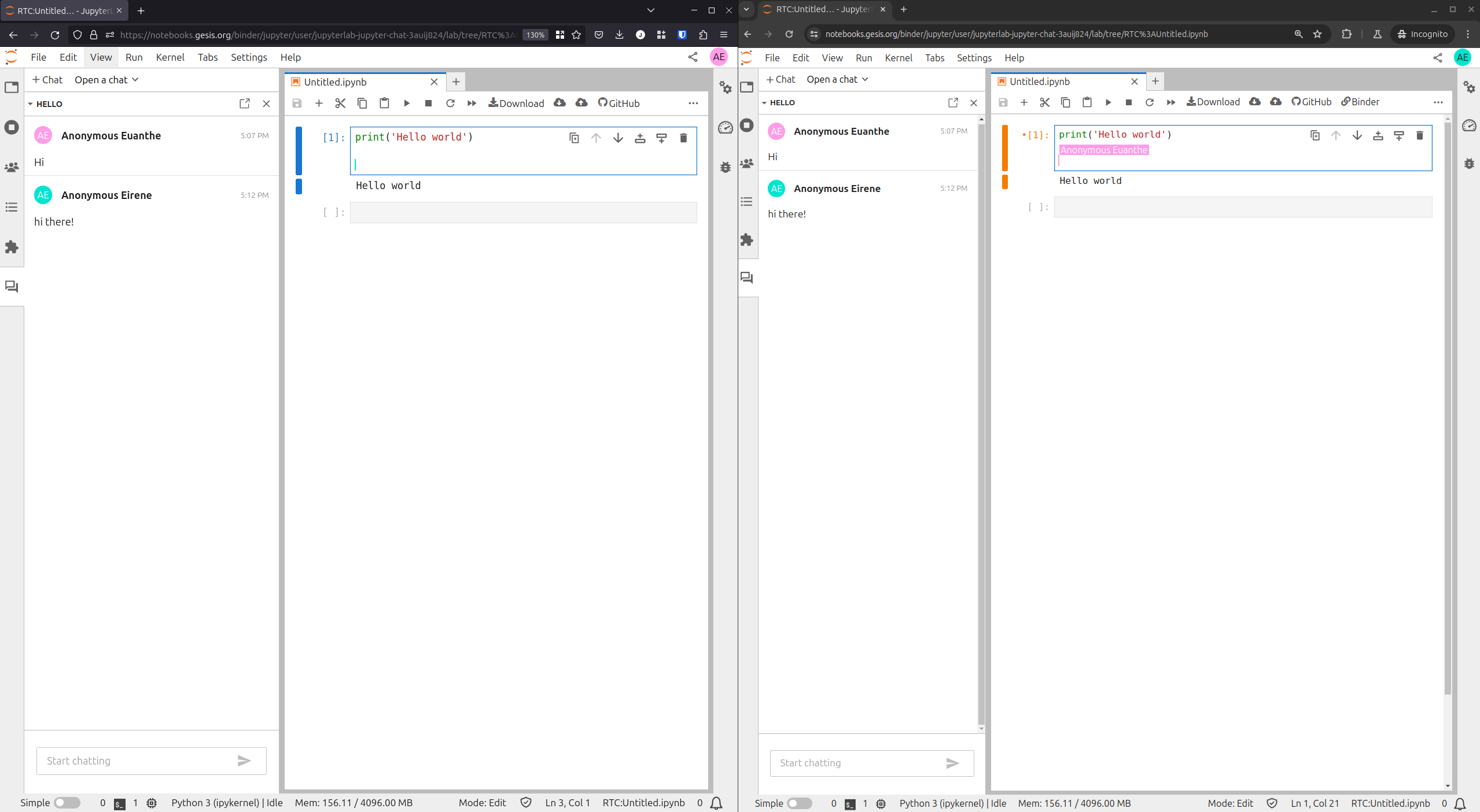
These chats use jupyter_collaboration, the collaborative edition of documents in jupyterlab.
Install chat extension#
The chat extension is available on PyPI.
pip install jupyterlab-chat
To uninstall the package:
pip uninstall jupyterlab-chat
Create a chat#
There are several ways to create a chat:
using the menu : file -> new -> chat
using the commands palette (
Ctrl+Shift+C) -> Create a new chatfrom the left panel
 ,
click on the button
,
click on the button 
Validating the dialog will create the new chat.
Creating a chat actually creates a file (shared document) in the tree files.
Warning
Currently, the left panel can only discover chat files in the root directory (to avoid computation issues in large nested tree files), so it only creates chat files in the root directory.
On the other hand, creating a chat using the menu or the command palette will create the file in the current directory of the file browser.
Open a chat#
There are also several ways to open a chat:
opening the file from the file browser (double click on it)
using the commands palette (
Ctrl+Shift+C) -> Open a chat. It opens a dialog to type the file pathfrom the left panel
,
there is a dropdown listing the chat files, in the root directory only.
Note
Opening the chat from the file browser or the command palette will open it in the main area, like any other document.
Opening a chat from the left panel will open it in the left panel.
Chat usage#
The chat UI is composed of a list of messages and an input to send new messages.
A message can be edited or deleted by its author, using a dedicated toolbar in the message.
Code toolbar#
When code is inserted in a message, a toolbar is displayed under the code section (the options must be set up from the settings).
From this toolbar, the code can be copied to the clipboard:
 .
.
If a notebook is opened and visible (and has an active cell), other actions are available:
copy the code to a new cell above the active one:

copy the the code to a new cell below the active one:

replace the content of the active cell with the code:

Attachments#
Files can be attached to the messages using the clip icon next to the send icon in the input. It opens a Dialog allowing to select and atach files.
Attachments can then be opened by clicking on the preview icon.
Chat settings#
Some jupyterlab settings are available for the chats in the setting panel
(menu Settings->Settings Editor), with the entry Chat.
These settings includes:
sendWithShiftEnter
Whether to send a message using Shift-Enter instead of Enter.
Default: falsestackMessages
Whether to stack consecutive messages from same user.
Default: trueunreadNotifications
Whether to enable or not the notifications on unread messages.
Default: trueenableCodeToolbar
Whether to enable or not the code toolbar.
Default: true